
This article documents how I set up an APRS receive-only iGate using a Raspberry Pi, RTL-SDR dongle and Dire Wolf. It was originally written some years ago and refers to older Raspberry Pi hardware, software and installation methods.
The basic principle is still valid, but some of the software, commands, downloads and links on this page may now be out of date. Treat this as a record of my original project rather than a current step-by-step installation guide.
2026 update: My APRS iGate, M0PSX-10, is still in operation in Essex, receiving APRS traffic on 144.800MHz and forwarding received packets to the APRS network. You can see current APRS activity on our Essex APRS map.
This is the final part of a three-part look at some ways to use a Raspberry Pi for amateur radio purposes. In this article, I’ll be looking at how to use a Raspberry Pi to help build the APRS receiver network by turning it into a 2m receiver and uploading received positions to the worldwide APRS map.
What is a Raspberry Pi?
It’s a low-cost computer. Connect it to a screen, keyboard and mouse, and you’re on your way. The Raspberry Pi uses the Linux operating system (as opposed to Windows), and it’s pretty powerful.
At the time this article was originally written, the Raspberry Pi 3B+ was the current model, priced at around £37. I used the earlier Raspberry Pi 3, which cost around £30 and was fast enough to cope with a cheap RTL-SDR dongle, making it ideal for this amateur radio project.
You can pick up a Pi online from Amazon – Raspberry Pi at Amazon.
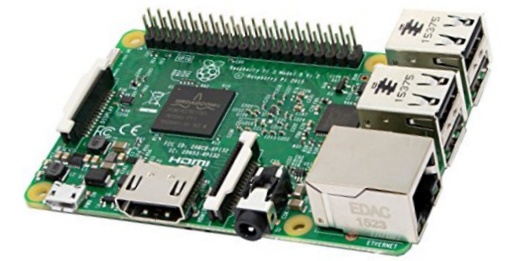
Raspberry Pi as an APRS iGate?
APRS is a great system for tracking the locations of travelling radio amateurs who transmit their position over the air on 144.800MHz. The network relies on receiving stations picking up these beacon signals and forwarding the information to the Internet. If APRS is new to you, take a look at aprs.fi to see who’s about.
If you connect a Raspberry Pi and an RTL-SDR USB dongle to an antenna and the Internet, you can receive APRS packets from nearby radio amateurs and upload them to the APRS network, perhaps helping to fill in some of the coverage gaps in your area.
I’m very grateful to Keith G6NHU for saving me a lot of legwork and putting together a full set of instructions on how to do this. Keith’s original article formed the basis of this project, with some additional notes below based on my own experience.
What I needed
- A Raspberry Pi 3 – mine cost around £30.
- An RTL-SDR USB dongle – mine cost around £10.
- A suitable Micro USB charger and lead – I used a 2.5A or 3A power supply rather than a 1A version.
- A USB keyboard and mouse.
- An HDMI display or suitable HDMI adapter.
- A 2m antenna – I used my backup loft-mounted 2m co-linear.
- An adapter to connect the antenna to the small MCX connector on my RTL-SDR dongle.
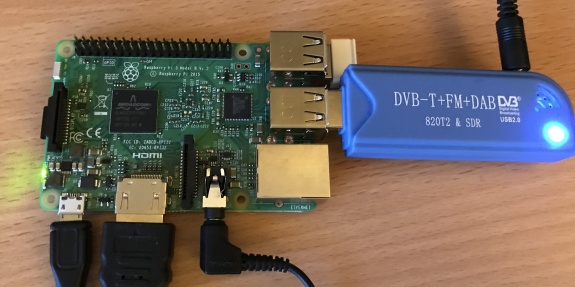
Preparing the software
For my original setup, I used a Micro SD card and a PC capable of writing an image to the card.
Unlike our previous two Raspberry Pi projects – Pi SDR and Pi Aircraft Tracking – for this project I used a pre-compiled Raspberry Pi image that had already been set up for APRS reception.
I used an image and instructions created by Keith G6NHU. There were two ways of setting up the APRS gateway:
- Using SSH to control the Pi from a PC or Mac connected to the same network.
- Connecting the Pi to a screen, keyboard and mouse and configuring it through the desktop interface.
I personally prefer to connect a screen to my Pi so I can see what’s going on. Doing it this way was also consistent with my previous two Pi articles, so that’s the method I used for this project.
Original article and software: Setting up an APRS iGate – QSO365.co.uk
Remember that this link and the software described above date from the original project and may no longer be current.
Setting up the software
For my original installation, I downloaded and unzipped Keith’s Raspberry Pi image, then flashed it onto a Micro SD card using Etcher or Win32DiskImager.
Once that was done, I inserted the SD card into the Pi, connected the SDR dongle and powered up the Pi.
I then connected the Pi to the Internet and edited the sdr.conf configuration file, adding my callsign, APRS ID and latitude/longitude as described in Keith’s original instructions.
Once the configuration had been saved, the system was ready to start receiving APRS packets.
Tweaking the RTL-SDR accuracy
When I first ran through the setup, I was unable to receive any packets, even though I could hear APRS packets being transmitted on 144.800MHz.
It turned out that, in my case, the problem was the frequency accuracy of the cheap RTL-SDR tuner. Some of these inexpensive dongles can be slightly off-frequency.
In my first article, Raspberry Pi as an SDR, I mentioned how to identify how far out the receiver was and enter an adjustment into the SDR software. The same trick worked here. My receiver was off by a positive value of 96ppm.
Keith also produced a guide explaining how to calibrate an RTL-SDR dongle.
For my setup, the fix involved making a small change to the dw.sh file in /usr/local/bin/.
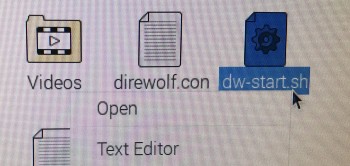
The original line looked like this:
DWCMD="bash -c 'rtl_fm -f 144.80M - | direwolf -c sdr.conf -f 24000 -D 1 -'"
I added the PPM correction using -p 96:
DWCMD="bash -c 'rtl_fm -f 144.80M -p 96 - | direwolf -c sdr.conf -f 24000 -D 1 -'"
After saving the change and rebooting the Pi, it worked for me.
The command above is retained to document my original installation. Current versions of RTL-SDR, Dire Wolf or Raspberry Pi OS may require a different configuration.
Xastir – See what stations are found
The setup described above uploads received APRS packets to the Internet so that they can be viewed on aprs.fi. But what if you want to see the received packets locally on a map?
I used a program called Xastir. I configured Xastir to receive APRS data from Dire Wolf using its Networked AGWPE interface on localhost port 8000.
Adding voice alerts to Xastir
I also configured the Pi iGate to speak when a new station was detected. I did this using the media player sox and the Xastir sound files.
One little “gotcha” was that the audio initially came out of the Pi’s HDMI socket rather than the 3.5mm audio socket. I changed the audio output to analogue using the speaker control on the Pi desktop.
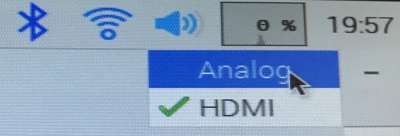
Voice alerts were a nice feature to add to the Raspberry Pi APRS iGate and potentially useful for amateur radio demonstrations.
Some of the gotchas
- Use a decent power supply. In my early experiments, the Pi kept losing its connection to the RTL-SDR dongle. I discovered that the 1A phone charger I was using wasn’t adequate to power both the Pi 3 and the dongle. Changing to a suitable power supply solved the problem.
- RTL-SDR frequency accuracy. My inexpensive SDR dongle needed a PPM correction before APRS reception became reliable.
- Running too hot? Depending on the Raspberry Pi and its environment, a heatsink or additional cooling may be useful.
Still running in 2026
Although the installation described in this article is now quite old, the APRS iGate I set up as part of this project is still running. M0PSX-10 continues to receive APRS traffic in the Essex area and pass received packets onto the APRS network.
You can see APRS stations and receiver sites around Essex on our live Essex APRS map.
Hopefully you’ve found this article, and our previous two Raspberry Pi projects, of interest. If you have a comment, please add it in the box below.